You've got a poster with the wrong date, a screenshot with a typo, or a product image with an outdated label. The original design file is long gone, and opening Photoshop for a two-word fix feels like hiring a crane to hang a picture frame.
You don't need it. An OCR-based image text editor can find the words in your image, let you rewrite them, and redraw just that area so it blends back in. This guide shows how the process works, walks through it step by step, and covers how to get a result that looks natural.
The Short Answer
To edit text in an image without Photoshop, use an online editor that combines OCR (optical character recognition) with local redrawing. It detects the text regions automatically. You select the words you want to change and type the new ones. The tool then repaints that area, aiming to match the original font, color, size, slant, perspective and background.
That's different from dropping a new text box on top of the picture. The old text is repainted rather than covered, and areas outside the selection are kept from the original image.
Why Photoshop Is More Work Than It Looks
Photoshop is excellent, but changing text in a flattened image there is a manual job. Typically you have to:
- Work out which font was used, or find a close match.
- Remove the old text with the clone stamp, healing brush or content-aware fill.
- Type a new layer and match size, spacing, color, angle and perspective.
- Blend the edges and background so the edit doesn't stand out.
If you do this every day, it's a fine workflow. For a quick fix, the font hunting and manual masking take far longer than the actual edit. An OCR-based tool handles detection and redrawing, and aims to match the original style, so you can focus on the wording.
How to Edit Text in an Image Online, Step by Step
The steps below use PixRetype, but the general flow is similar for most tools of this kind.
Step 1: Upload Your Image
Start with the best version of the image you have. Sharp, high-resolution files give the text detection more to work with and make the final edit easier to blend.
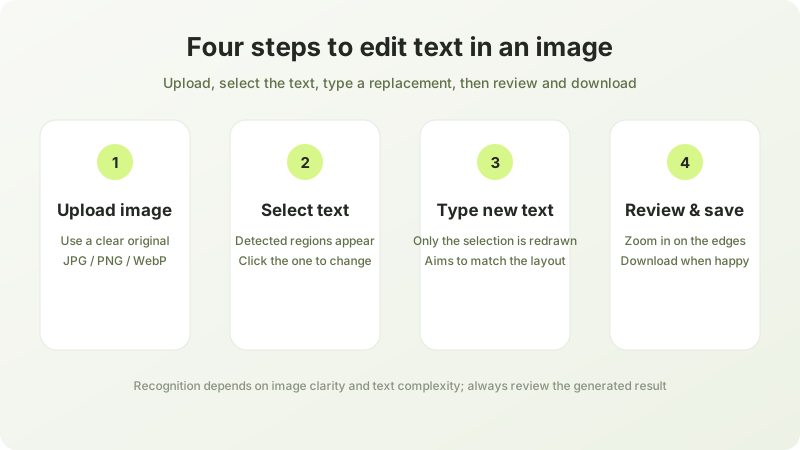
Once the file is uploaded, the tool scans it and marks the text regions it finds.
Step 2: Select the Text You Want to Change
Click the region you want to edit. Only that selection is changed; areas outside the selection are kept from the original image.
The text can be printed type, handwriting, decorative lettering, vertical text, or a mix of Chinese and English, as long as it is clear enough. If a line wasn't detected, or two lines were grouped together, select the correct region; if it still isn't detected, try a clearer image or edit one line at a time.
Step 3: Type Your Replacement Text
Enter the new wording. A few small habits help the result look right:
- Keep the length in mind. Changing "March 5" to "March 15" fits easily. Swapping a short label for a full sentence means the new text has to squeeze into the original space.
- Match the surrounding style. Capitalization, punctuation and spacing should follow the rest of the image.
- Edit several areas in one pass if you need to. You can change more than one region at a time, which is handy when a date appears in multiple places on the same poster. Just review each change afterward.
The tool then redraws the selected area, trying to carry over the original font style, color, size, tilt and perspective while blending the background back in.
Step 4: Check the Result and Download
Zoom in and inspect the edit. Look at the letter edges, the spacing between characters, and the background where the old text used to be. Generated results always need a human check, and an exact pixel-for-pixel match isn't something any tool can promise. If something looks slightly off, adjust the text or selection and run it again. When you're happy, download the image.
What Kinds of Images Work Well
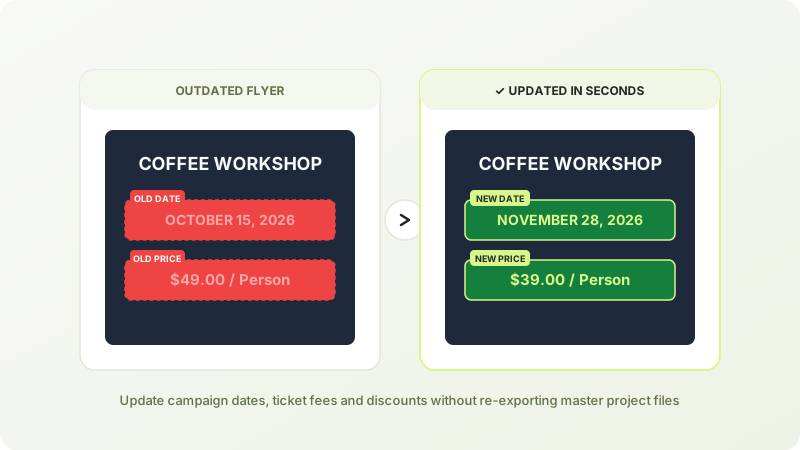
Text editing is most useful when the original file isn't available, or when opening a full design tool isn't worth the effort. Common examples:
- Posters and flyers with a changed date, time or venue.
- Screenshots with a typo, an outdated number or a name to fix.
- E-commerce images where a label, spec or claim needs updating.
- Social graphics where a headline needs a last-minute rewrite.
Because the tool is designed for complex lettering such as stylized titles, handwritten notes, or angled text, it can handle more than plain printed fonts. Results still depend on clarity and how complex the lettering is.
Tips for a Natural-Looking Edit
A few choices separate an edit nobody notices from one that looks pasted in.
- Start from the cleanest source. A direct screenshot beats a photo of a screen, and a sharp file beats a compressed copy.
- Zoom in before you export. Problems that are invisible at fit-to-screen size often show up at 200%.
- Select only what needs to change. A tight selection leaves more of the original untouched.
- Check the details. Weight, letter spacing and edge sharpness are the usual giveaways.
- Keep a copy of the original. Always save the edited version as a new file.
When It May Struggle
No text editor is perfect, and it helps to know where the weak spots are. Recognition isn't 100% accurate, so some text may be missed or misread. Results can be less reliable when:
- The image is blurry or heavily compressed.
- The text is partly covered by other objects.
- Handwriting is very small or hard to read.
- The lettering is extremely stylized or unusual.
In those cases, try a higher-quality source image, select the region more precisely, or edit one line at a time. If a particular image still won't cooperate, a manual workflow in a full design tool may be the better route.
Other Ways to Edit Text Without Photoshop
Free desktop editors such as GIMP. They're capable and cost nothing, but the workflow is as manual as Photoshop's. You still patch the background and match the font yourself.
Browser-based design tools. Great when you have the original layered file. With a flattened image, you usually cover the old text with a shape and type over it, which works best on solid backgrounds.
Phone markup tools. Handy for adding a note on top of a picture, but they don't remove the text underneath.
OCR-based text replacement. The most direct route when you have a flat image and want to change existing words while keeping the look of the original.
Use Text Editing Responsibly
Editing text in images is useful for fixing typos, updating your own designs, localizing screenshots and refreshing outdated materials. Only edit images you own or have permission to change, and never alter documents, receipts, IDs or other records to mislead anyone.
FAQ
Can I edit text in a screenshot?
Yes. Screenshots are often ideal because they're sharp and the text is clean, which helps detection work accurately.
Will the font match exactly?
The tool aims to match the original font style, color, size, slant and perspective, but it doesn't promise a pixel-perfect copy. Always zoom in and review the result before using it.
Does it work on handwriting and decorative fonts?
It's designed to handle clear handwriting and artistic lettering as well as printed text. Very small handwriting or extremely stylized fonts are the most likely to cause problems, so check those edits closely.
Can I change several pieces of text at once?
Yes, you can edit multiple regions in one session, which is useful for posters, screenshots and product images with repeated text.
How much does it cost?
Pricing and usage limits can change, so check the PixRetype website for the latest details.
Final Thoughts
Fixing text in an image doesn't have to mean opening a heavyweight editor. Upload the image, select the text, type the new wording, and check the result. For most everyday edits, that's all it takes.
Ready to try it on your own image? Head to the edit text in image tool to get started, browse more guides on the PixRetype blog, or visit the PixRetype homepage to see what the tool can do.
Edit Text in Your Images Without Photoshop
Fast deep-learning OCR, automated font-weight matching, and seamless inpainting.