Postponed an event or updated seasonal menu pricing? Don't pay a designer to re-render the whole graphic. Learn how to quickly update numbers, currency signs, and dates on flyers in seconds without needing the original PSD or Figma file.
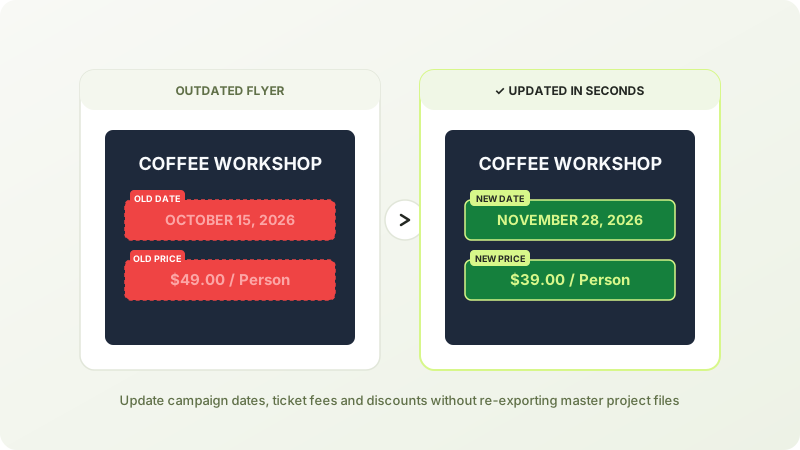
When You Need to Change Numbers on a Graphic Fast
In business and event planning, dates and pricing change all the time:
- An outdoor music festival is postponed due to weather;
- A restaurant introduces new seasonal pricing for its drinks menu;
- An early-bird discount deadline gets extended for another week.
If the original designer is unavailable or the source project file is lost, recreating the design from scratch wastes hours. With PixRetype's targeted text replacement, you only change the specific numbers while 100% of the artwork, branding, and layouts stay crisp and untouched.
Step-by-Step Instructions
- Upload your image: Head over to the PixRetype image editor and drag in your promotional graphic (supports JPG, PNG, and WebP up to 20MB).
- Select the numbers: Click on the date line or price tag. You can also use our dedicated change price in image tool or edit date in photo tool.
- Type the new values: Enter the new date or price. Currency symbols like
$,€,¥, and£are recognized automatically, and numeral kerning adapts seamlessly. - Export: Compare the before and after, then download the full-resolution asset ready for print or web syndication.
Frequently Asked Questions
What happens if the new price has more digits (e.g., $9 to $100)?
The system automatically optimizes letter spacing and font size to fit the original bounding box naturally so numbers don't collide with adjacent design elements.
Will changing the date degrade image print quality?
No. PixRetype outputs your image at the original resolution and aspect ratio, meaning print-ready 300 DPI files remain sharp and ready for physical printing.
Edit Text in Your Images Without Photoshop
Fast deep-learning OCR, automated font-weight matching, and seamless inpainting.