Replacing text in a rasterized JPEG or PNG image usually ruins the font and background. In this guide, discover how modern AI identifies stroke thickness, letter anatomy, and background texture to replace words while keeping the exact same typeface.
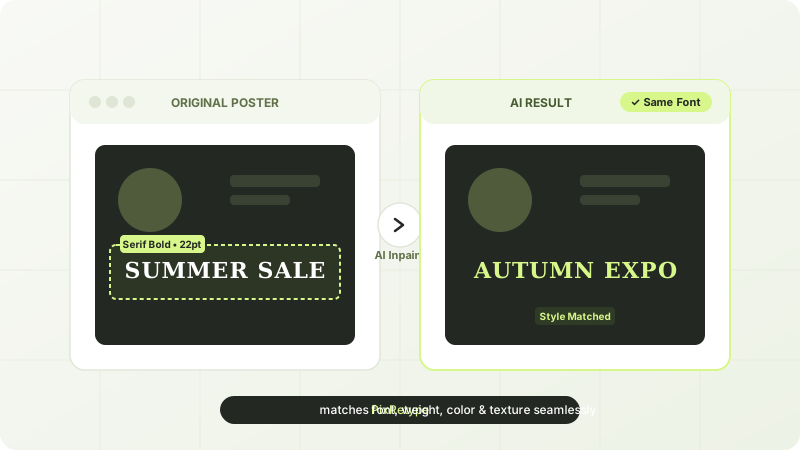
Why Matching Fonts in Flat Images Has Always Been Painful
Anyone who has tried modifying an existing flyer, graphic design, or promo banner in Photoshop knows the frustration: once an image is flattened to JPG or PNG, letters are no longer editable text—they are simply colored pixels merged into the background.
Traditional methods required:
- Reverse-engineering the font family with tools like WhatTheFont or Font Squirrel.
- Hunting down font licenses or matching pirated font files.
- Manually cloning out the old words with the stamp or healing brush.
- Laboriously adjusting tracking, leading, shadows, and noise grain to make the new text look believable.
With PixRetype's AI same-font engine, neural inpainting analyzes the surrounding letterforms and automatically synthesizes the new characters in the exact same typographical style.
The 4 Steps to Edit Text in an Image with the Same Font
Here is how you can use the PixRetype online editor to replace text while keeping the exact same typeface:
Step 1: Upload Your Image
Head over to the online image text editor and drag your JPEG, PNG, or WebP graphic into the upload box. The system automatically scans the image using deep-learning OCR and draws clickable boundary boxes around every detected line of text.
Step 2: Select the Text Region
Click on the word or headline you want to alter. Unlike traditional graphic software where you need to manually draw precise bezier paths or lasso masks, PixRetype highlights the exact bounds with sub-pixel accuracy. You can select one region or batch-edit multiple areas simultaneously.
Step 3: Type Your Replacement Copy
In the right-hand panel, write your new words. The neural model studies:
- Stroke thickness and letter weight (regular, bold, black)
- Serif anatomy and terminal curves
- Perspective tilt, drop shadows, and subtle color gradients
Step 4: Generate and Compare Side-by-Side
Click Submit changes and let the inpainting model work. Within seconds, use the interactive comparison slider to inspect the result against the original. Download the clean, full-resolution image without watermarks or artifacts.
Pro Tips for Flawless Typography Replacements
- Describe special textures in the notes field: If the original text features metallic foil, neon glows, or chalk dust, mention it in the optional instruction field (e.g., "preserve the worn vintage chalk texture").
- Watch your word length: Replacing a 4-letter word with a 15-letter word will force the system to compress letters. When swapping long copy, consider replacing the entire line or widening the selection.
- Leverage high-res originals: Avoid editing screenshots that have been repeatedly compressed through messaging apps, as compression noise degrades font stroke detection.
Frequently Asked Questions
Do I need to install font files (.ttf or .otf) to match the text?
No. You do not need any font files. PixRetype uses visual diffusion models that understand stroke geometry directly from the image pixels, synthesizing new words that match the existing style.
Can I replace English text with Chinese or other languages?
Yes! The OCR and generative inpainting model supports multilingual recognition and typography across English, Chinese, Japanese, German, Spanish, French, and more. Try the multilingual text editor.
Does the background get blurred or damaged during font replacement?
No. The inpainting mask is tightly bound to the detected glyph contours, so photographic backgrounds, subtle noise gradients, and patterns remain completely untouched.
免下载、免安装,直接在线修改图片文字
支持单张与批量多区域修改,自动保留原图字体和背景,数秒即可无痕重绘导出。