Need to mask confidential emails or customer account numbers before posting a software tutorial or bug report? Learn how to edit screenshot UI text cleanly without clumsy paint tools or blurry redaction boxes.
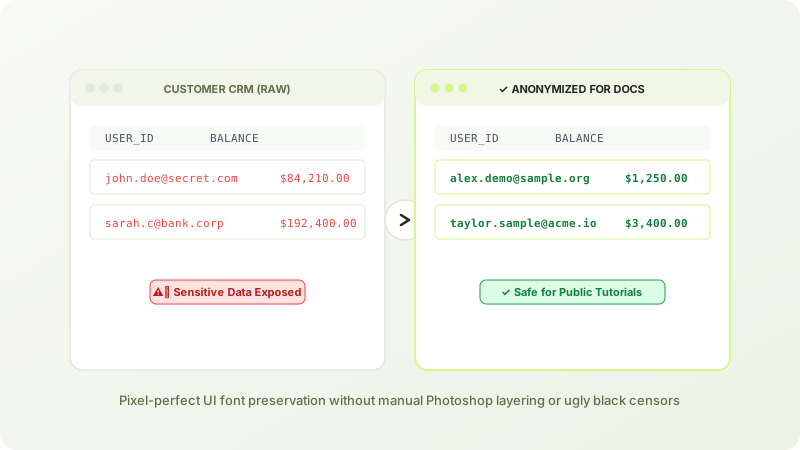
Why Black Redaction Bars Ruin Documentation Quality
When creating user guides, slide presentations, or public case studies, putting thick black censorship bars or pixelated blur filters over sensitive data makes the interface look untrustworthy and unpolished.
By using PixRetype's screenshot editor, you replace sensitive customer records with authentic-looking fictitious data. The UI text retains its crisp, subpixel antialiasing and native system font appearance (such as Inter, Roboto, San Francisco, or Segoe UI).
Step-by-Step Instructions
- Upload your screenshot: Capture your dashboard or chat window and drag it into the free online screenshot editor.
- Select confidential fields: Click on usernames, emails, or balances. The OCR engine identifies the exact line bounds.
- Type dummy data: Substitute real info with placeholders like
[email protected]or$1,250.00. The font weight, color, and background tone are carried over automatically. - Download: Export professional-looking screenshots that maintain 100% of your software's aesthetic polish.
Frequently Asked Questions
Does this work on dark mode software interfaces?
Yes. PixRetype automatically detects dark and light theme background hues, ensuring replacement UI text blends seamlessly into slate, navy, or black dashboard panels.
Can I edit multiple UI fields simultaneously?
Yes! You can select up to 50 distinct text areas on a single screenshot and update them all in one operation using the multi-region tool.
Edit Text in Your Images Without Photoshop
Fast deep-learning OCR, automated font-weight matching, and seamless inpainting.