01Upload an image
Drag your image here
Images are uploaded to the server for recognition and editing
Here is a full walkthrough on an event poster, from upload to download, with the pitfalls that trip up first-time users.
Drag your image here
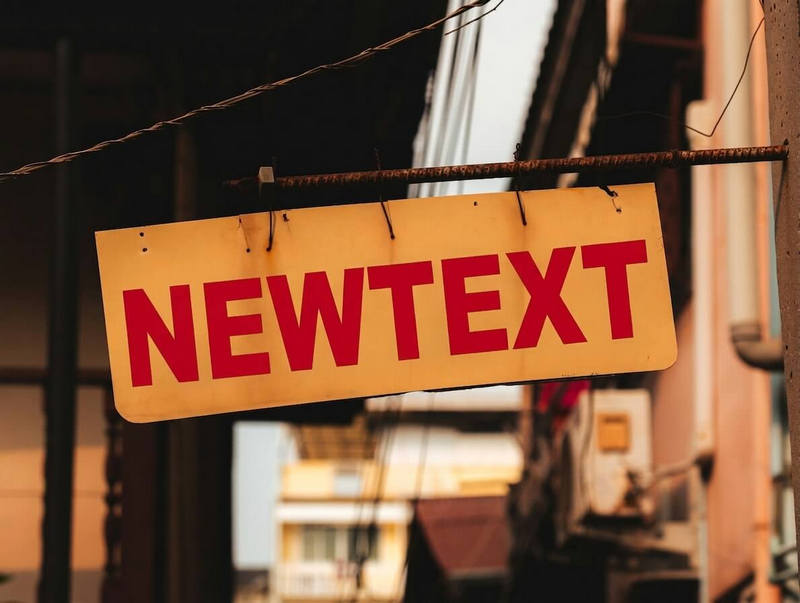
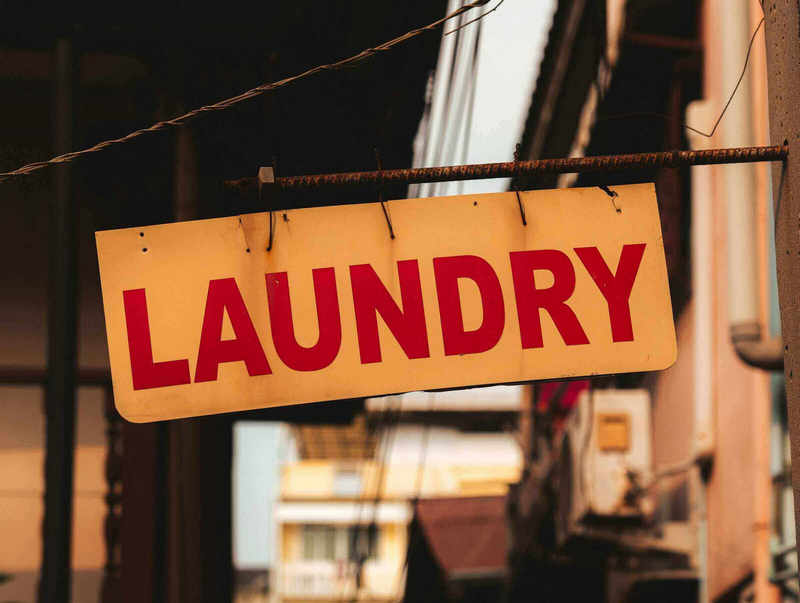
Drag slider to compare before and after
From posters to screenshots, the flow never changes
Drag the file in or pick one from your device; the text areas are detected and become clickable boxes.
Click the region to change, type the new copy, and check the character count for each one.
Submit the job, compare the result with the original, and download the image.
Check that the image is sharp and the text is not cropped. If nothing shows up, upload a higher-resolution version.
Try a tighter selection that covers only the words, or describe the desired alignment in the extra notes field.
No. Every region has a number and its own input, so you can check each original against its replacement.
No. Your selection and typed copy are kept; just submit again.